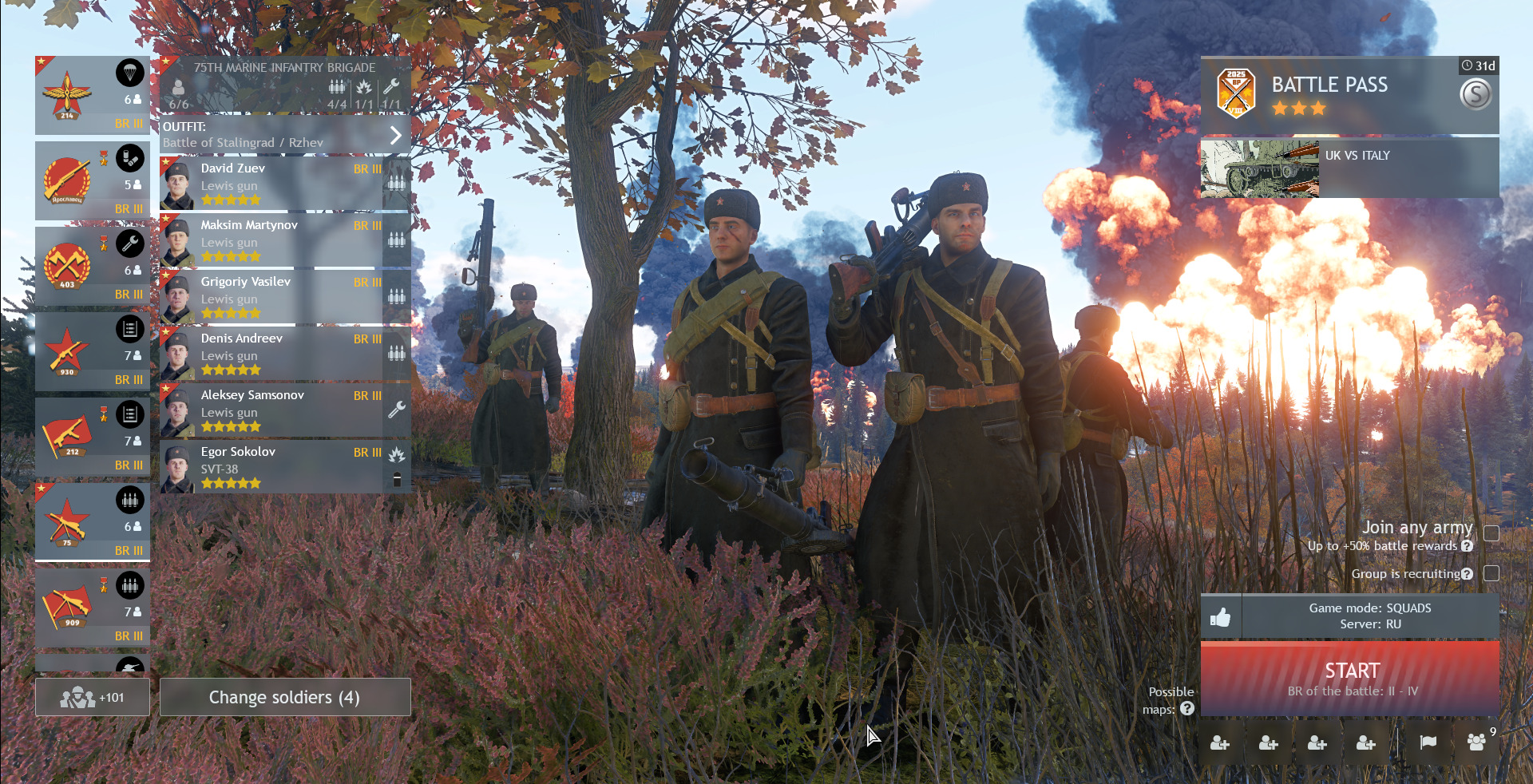
You’re looking to refresh the look of your Enlisted main menu, installing a custom hangar layout is a great way to personalize your experience. These layouts, created by community members, replace the default background scene where your squad, vehicles, and aircraft are displayed with something more creative or atmospheric.
To get started, head over to sandbox.enlisted.net. Once there, navigate to the “Hangar” section and browse through the available layouts.
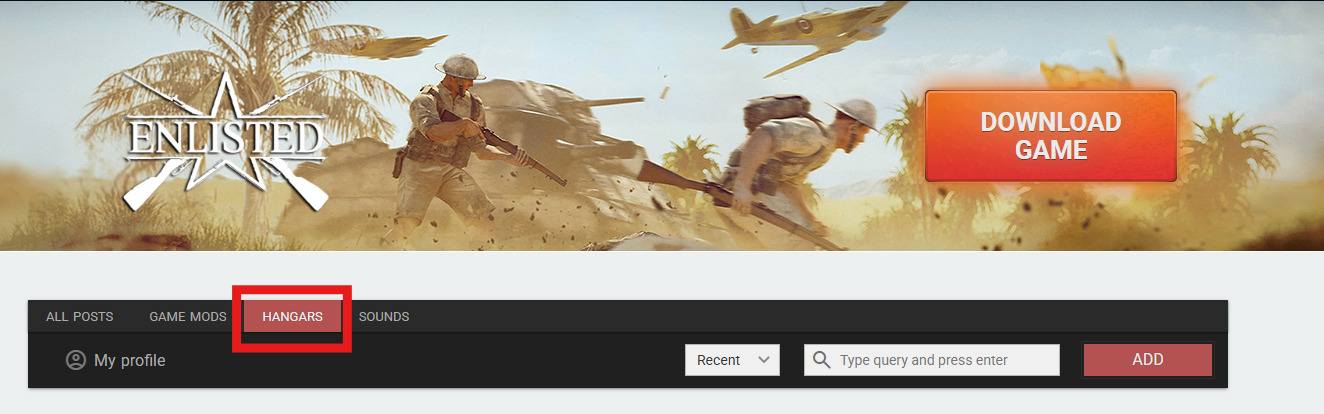
When you find one that catches your eye, download the associated file—usually named hangar.blk.

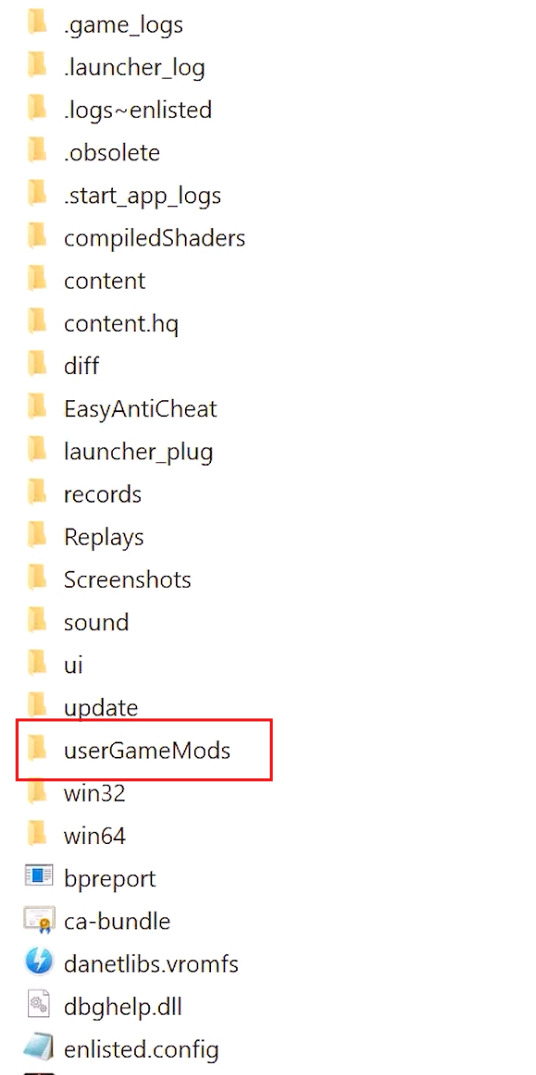
Next, you’ll need to place this file in the correct location. Open your Enlisted installation folder and look for a subfolder called userGameMod. If it doesn’t exist, don’t worry—you can simply create it yourself. Once the folder is ready, move the downloaded hangar.blk file into it.
Now, launch the Enlisted game client as you normally would. If everything is set up correctly, your new hangar layout will automatically appear in the main menu, giving your game a fresh new vibe.
Keep in mind that these custom hangars are made by fellow players, so they might contain bugs or visual glitches. If you like their work, let the Creator of the Hangar now about the Problem in the comment section!
If you run into any issues, just delete the hangar.blk file from the userGameMod folder. The game will then revert to the default hangar the next time you start it.
And that’s it—you’ve successfully installed a custom hangar layout in Enlisted. Enjoy your personalized main menu, and feel free to explore even more mods and layouts on the sandbox site. There’s a whole world of creativity waiting for you!